Automation
Automation
Automation helps the user to perform an action when a trigger condition gets fulfilled.
The Automation feature can be used to schedule the execution of a particular program. With the help of this feature, the user can repeatedly run a program and generate the output at fixed points in time without any manual intervention.
Currently, there is only one trigger type, i.e: At a Scheduled time and only one action type, i.e: Execute a Program
We will update this article when new triggers and actions are available in the future.
Create
To create a new automation, follow these steps
- Navigate to
Lab > Automations - Click on
Create automation
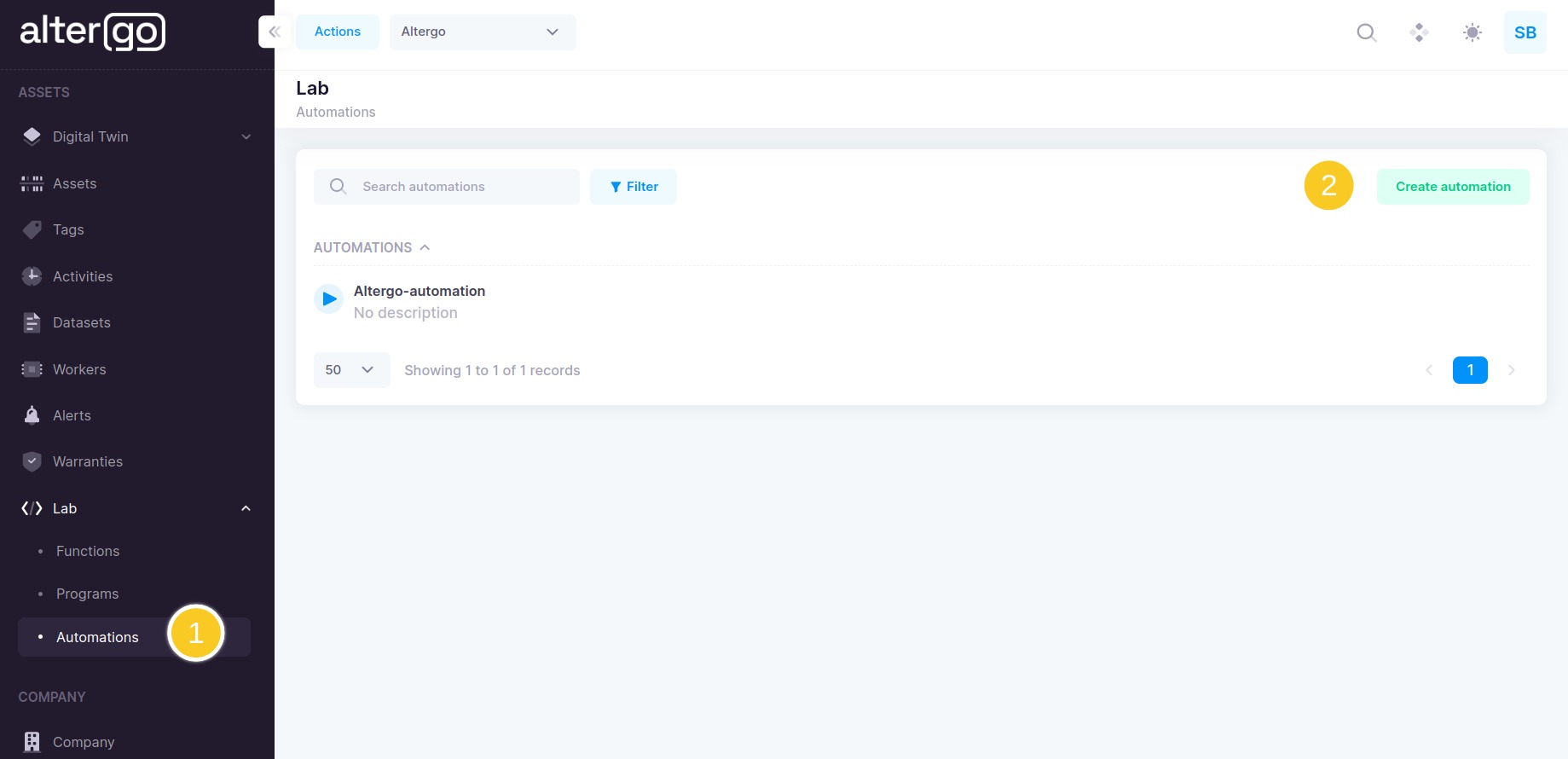
User can rename created automation, New Automation is default
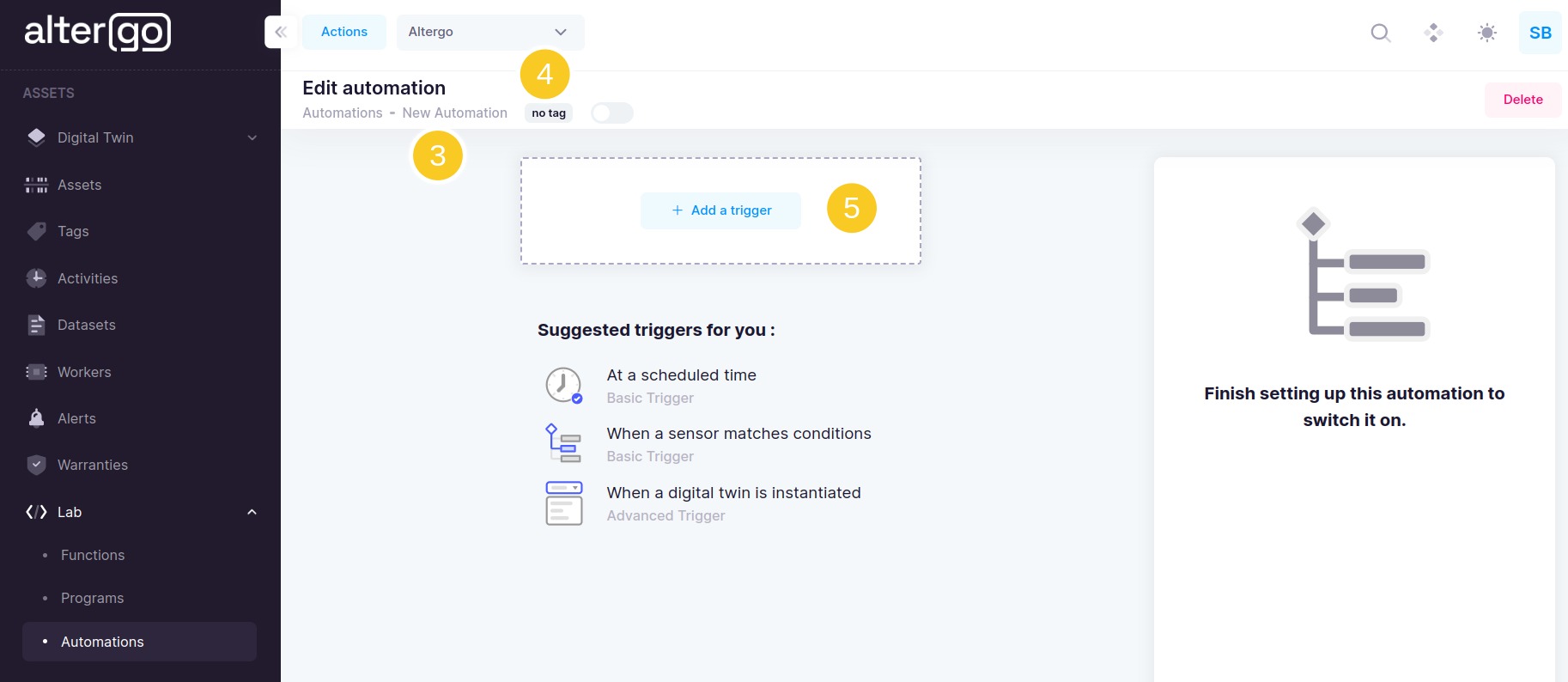
- Click on
New Automationtext to edit the name of the automation (optional) - Click on
no tagto add tags to the automation (optional) - Click on
Add a triggerto add the trigger type
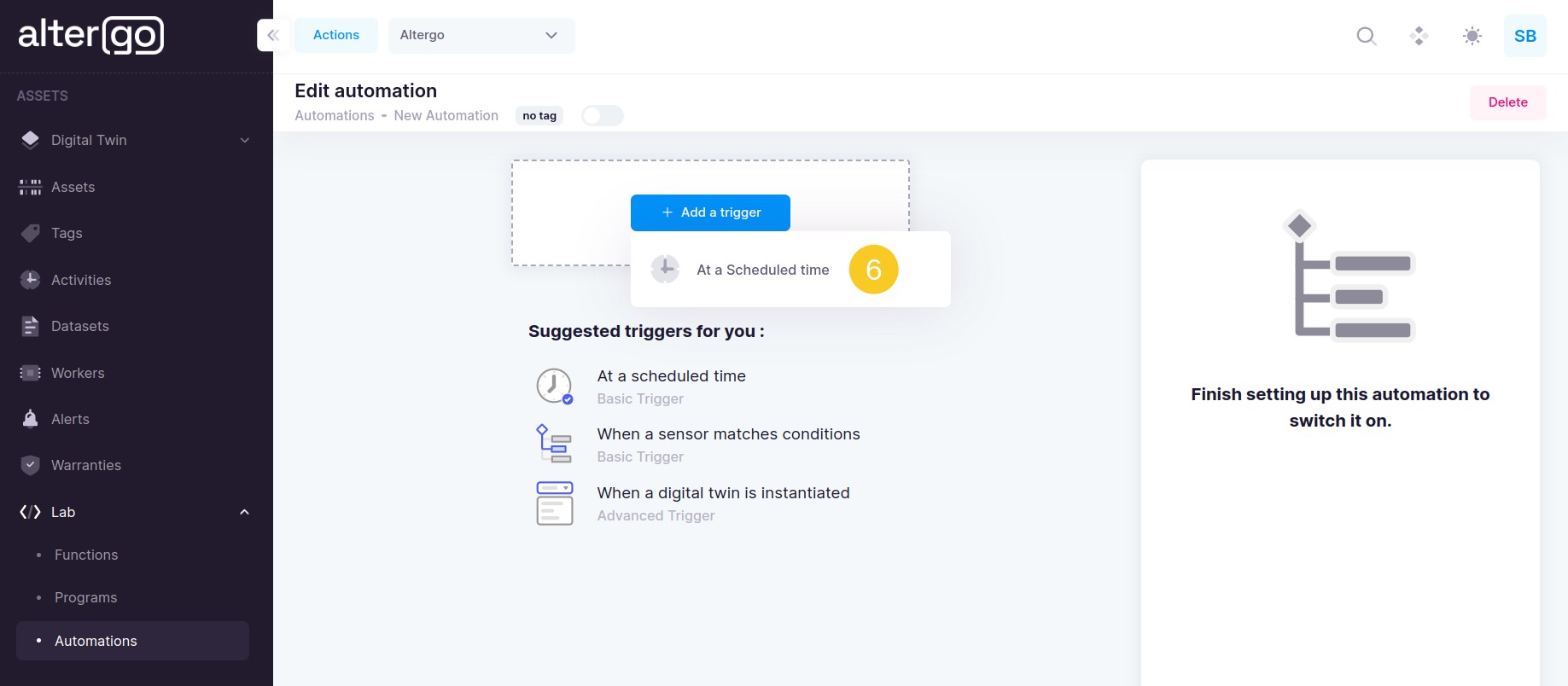
- Select
At a Scheduled timefrom the dropdown
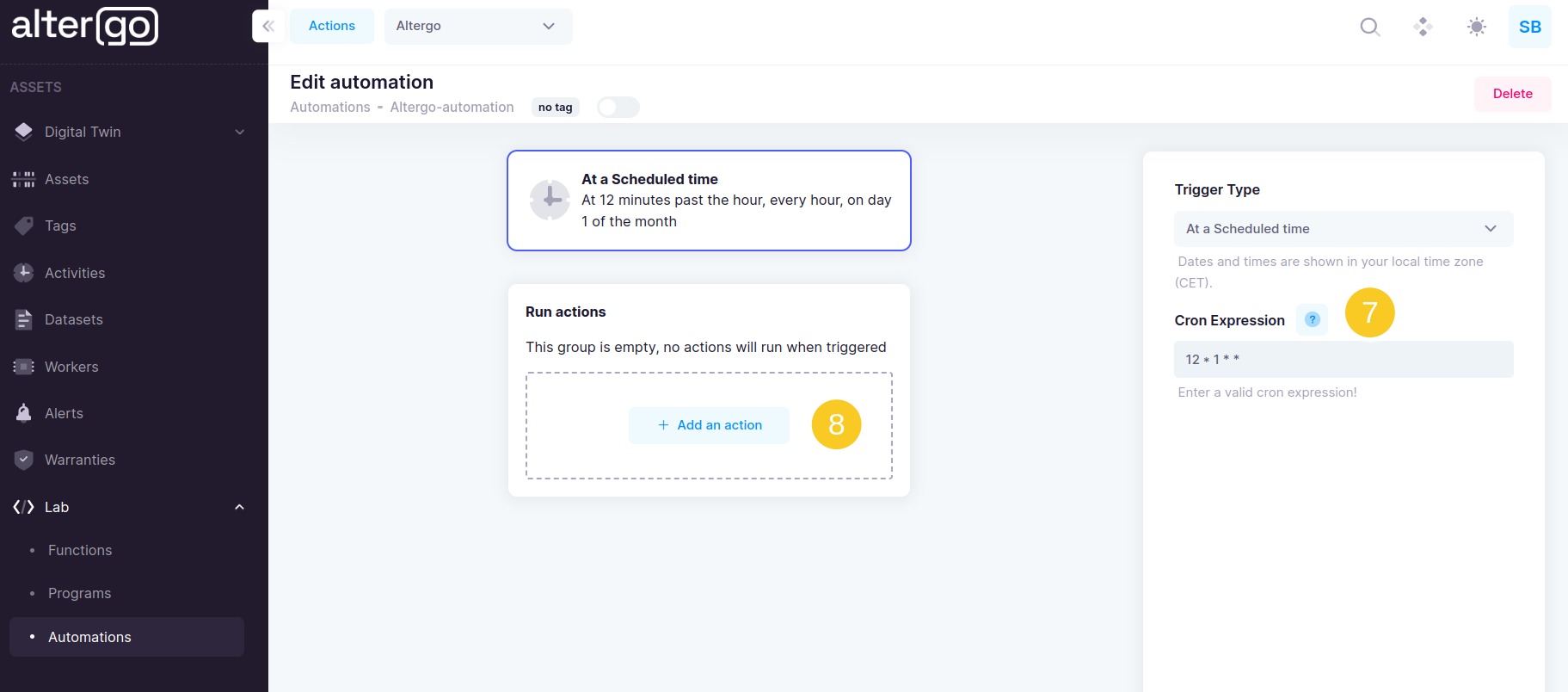
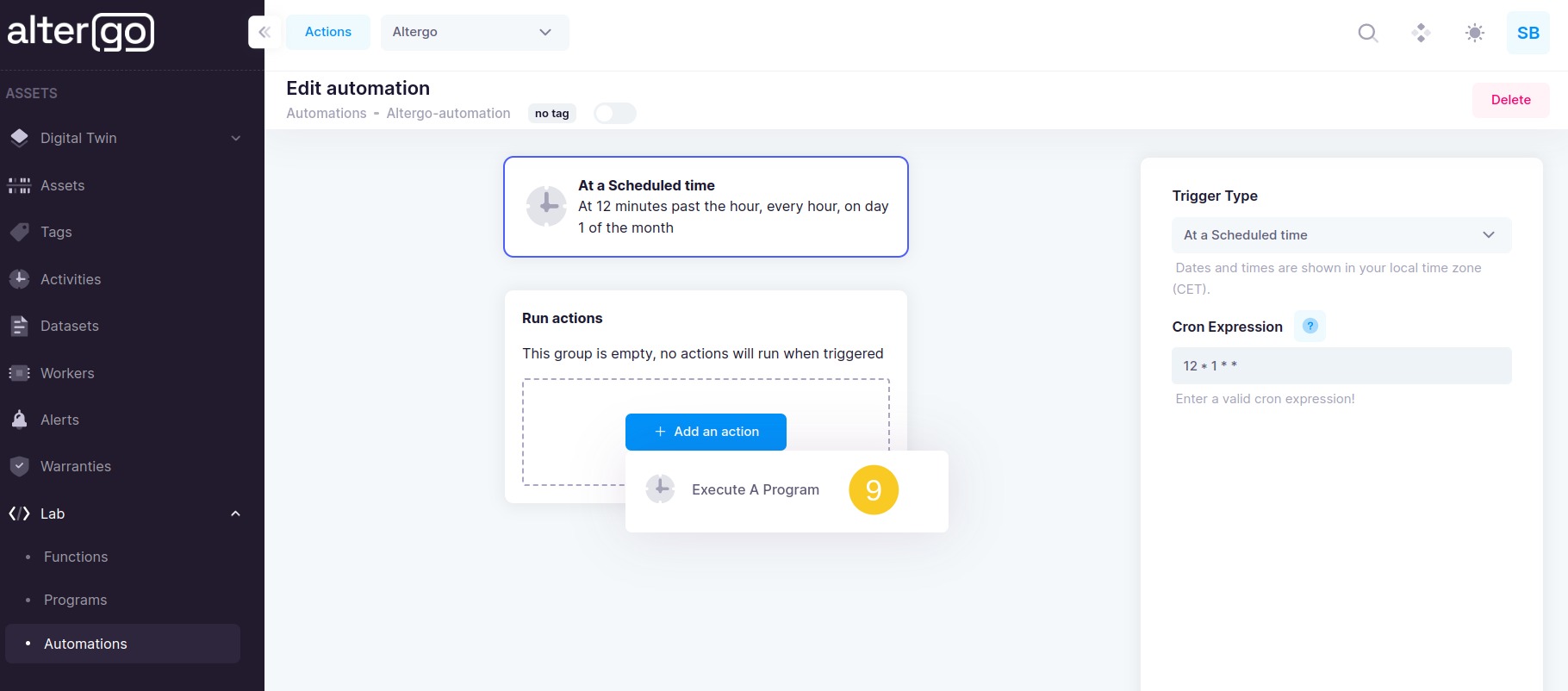
- Add cron expression in the input box
- Click on
Add an action
- select
Execute A Programfrom the dropdown
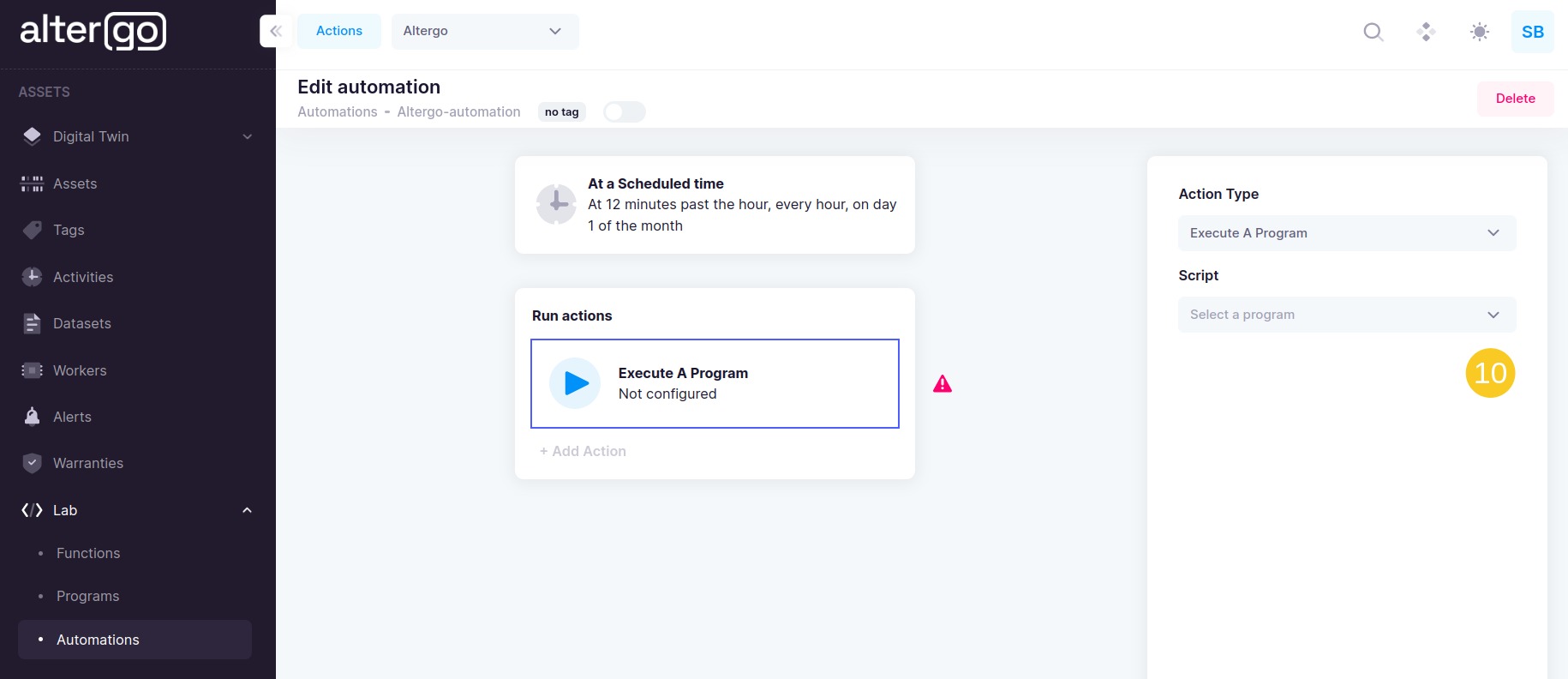
- Select the
programto be executed
Switch onthe automation once you have configured the trigger and action both
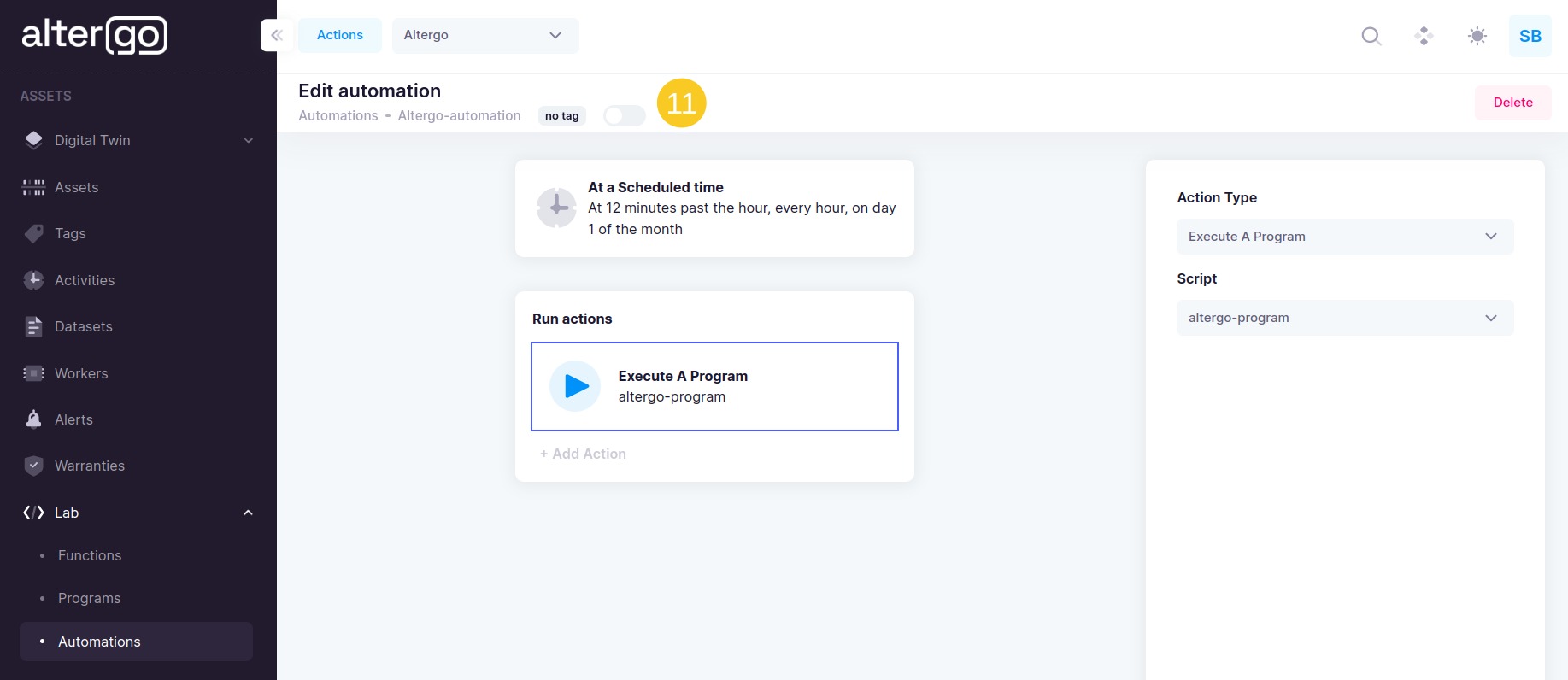
The platform will not allow the user to switch the automation on if both the trigger and the actions are not entirely configured. Meaning, that the trigger type and action type along with their details should be valid.