Program manager
Overview
Programs are nothing but collection of Functions The Programs manager in Lab helps the user create programs and execute them. As per the requirement, the user can create programs with a single function or by combining multiple functions. The user can define input parameters for each function in the program. The program runs within Altergo platform.
Create
To create a new program, follow these steps
- Navigate to
Lab > Programspage - Click on
Create programto navigate to the program creation page
.jpeg)
- Enter a program
Name - Click on
Add functionto add aFunction
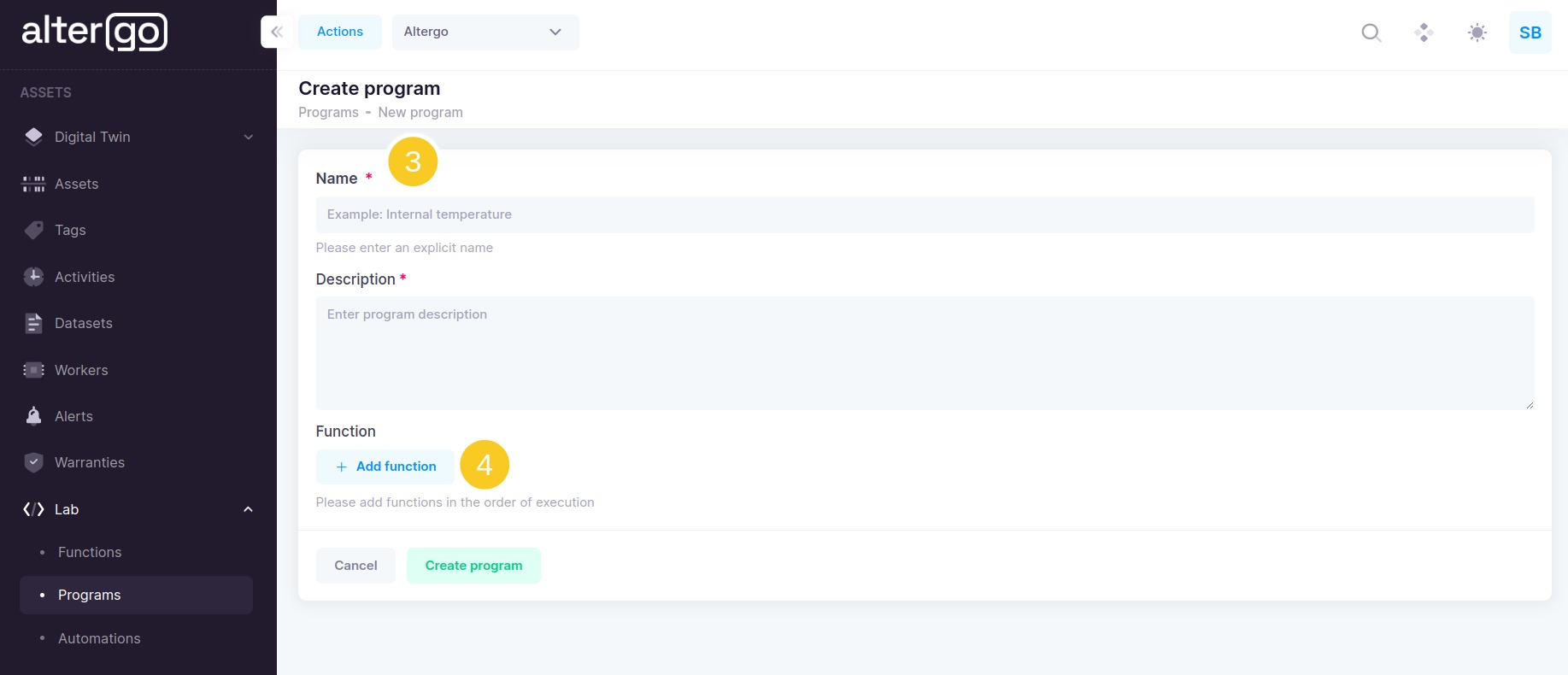
- Select a
Functionfrom the dropdown - Click on
Add parameterto add a parameter - Click on
Create programto save
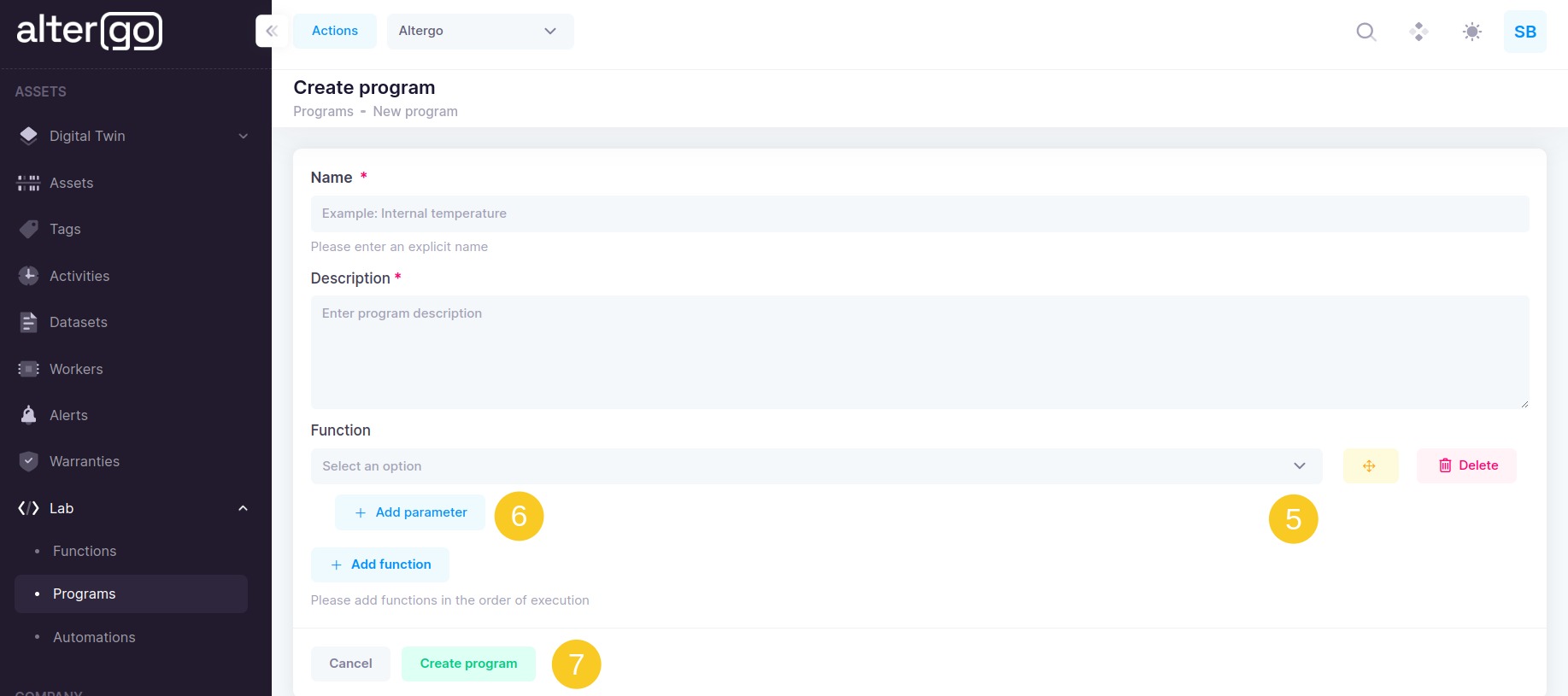
Add functions in the order of execution
Input parameters
A function can have some input parameters that can be changed dynamically at the time of execution. These parameters need to be mentioned in the cell with tag parameters in the function. The parameters are in the form of key value pair and provided to the function in json format at the time of execution.
Input parameters on Altergo help you to add those parameters in a user friendly way and also provide a default value to it.
- Enter the key of the parameter
- Enter the default value of the parameter
- Click on
Add parameterto add more parameter to the function
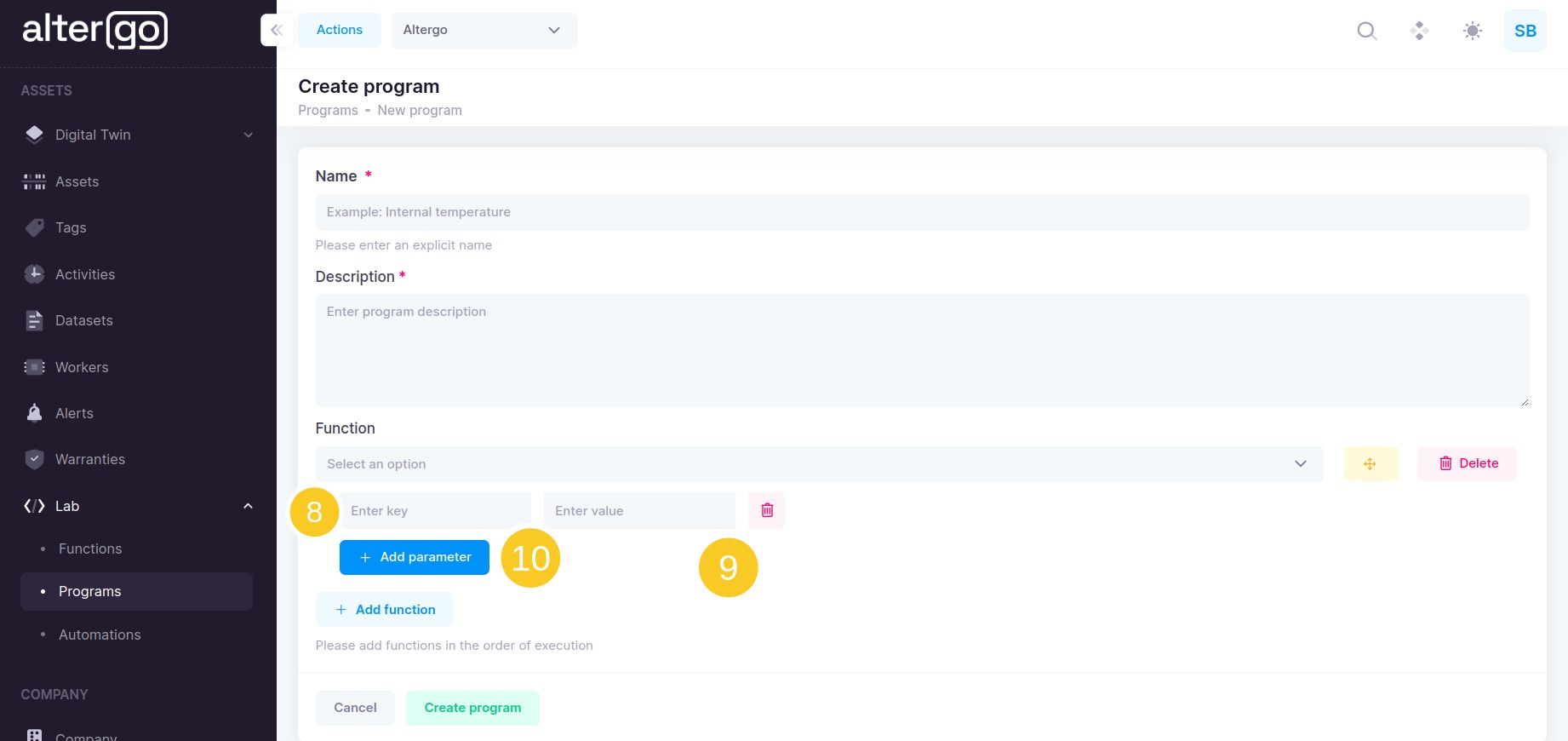
Adding parameters is optional as a function might not need any dynamic parameters.
Altergo Default Parameters
Altergo adds some default parameters to every function in the program and they can be used inside the function. However, the user needs to add these default parameters in a cell with tag parameters for it to be used later in their function
Here are the altergo default parameters and their explanation
- altergoProgramTaskId - The task id created for the current program execution
- altergoUserApiKey - The api key of the user who executed the program
- altergoFactoryApi - Altergo factory API
- altergoIotApi - Altergo IoT API
For ease, just add the following code block in the function.
# List of default parameters provided to each notebook executed on the program manager
altergoProgramTaskId = ""
altergoUserApiKey = ""
altergoFactoryApi = ""
altergoIoTApi = ""
Using Program Output as input to a widget
The user can utilize widgets on dashboards to visualize output files generated by the program when it is executed. When the program gets executed, these output files are stored and made available on the widget studio.
While you can generate any type of file from your program, the widget studio is currently configured to visualise only HTML files.
If you want to know more about the usage of widget studio to visualise the HTML files, please follow this article